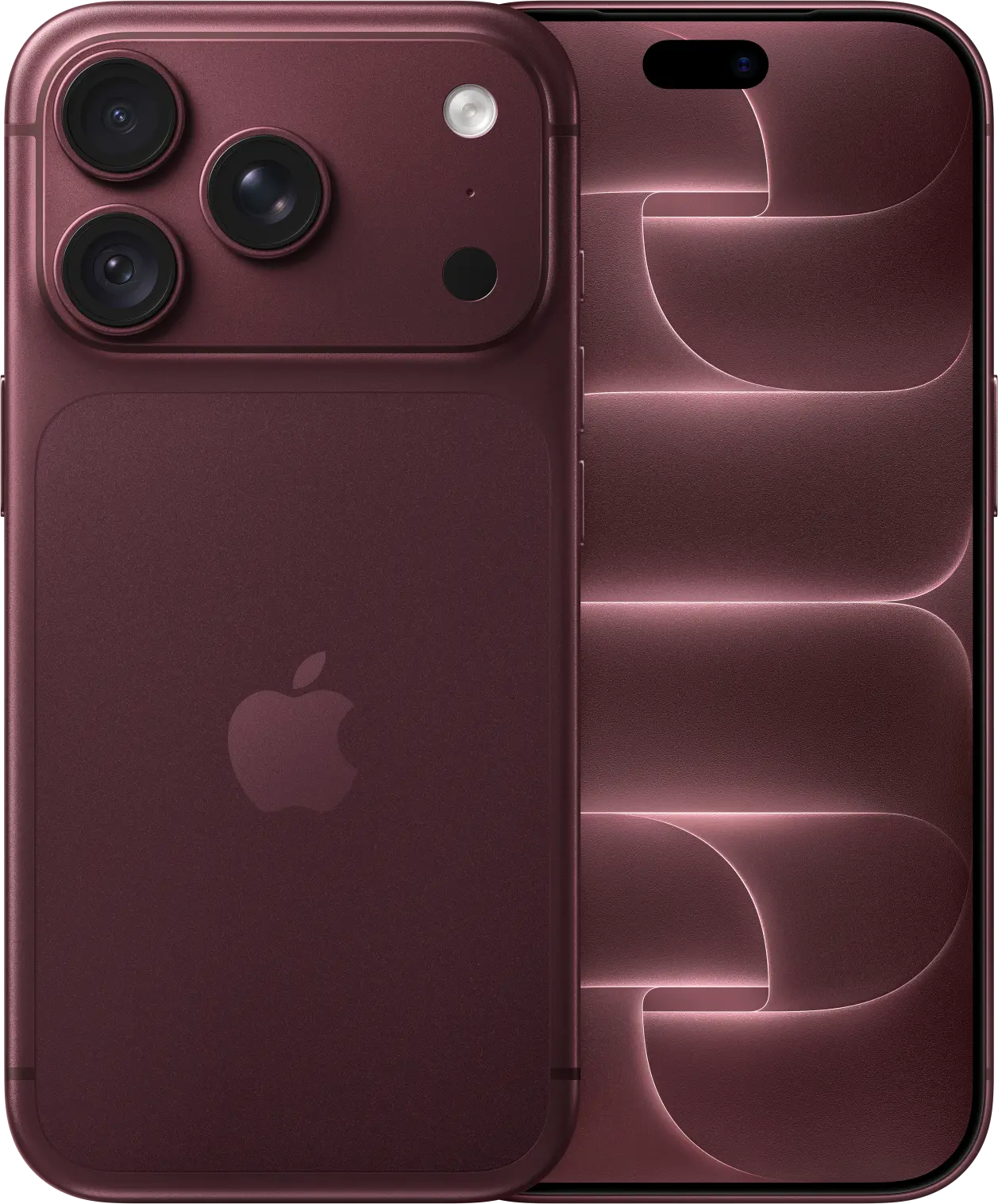




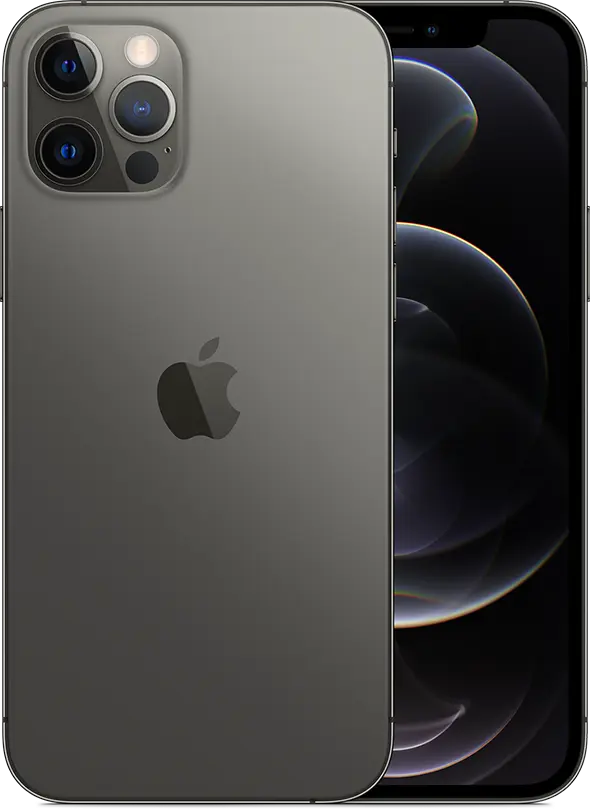

Quick Start copies your old iPhone onto your new one, wirelessly. Give it a quiet half hour: the more photos and videos you have, the longer it takes.
Before you start
- Update your old iPhone to the latest iOS (Settings > General > Software Update). Quick Start needs iOS 11 or later.
- Connect your old iPhone to Wi‑Fi and turn Bluetooth on.
- Charge both phones, or keep them plugged in.
- Back up WhatsApp: in WhatsApp, go to Settings > Chats > Chat Backup and tap Back Up Now.
Transfer with Quick Start
- Turn on your new iPhone and place it next to your old one. A Quick Start screen appears on the old iPhone.
- Follow the prompts: scan the animation on the new iPhone with the old one, then enter your old passcode on the new phone.
- Connect the new iPhone to Wi‑Fi or mobile data and activate your SIM or eSIM if asked.
- Set up Face ID or Touch ID.
- Choose how to transfer: Download from iCloud lets you use the new phone straight away while things download; Transfer directly copies everything from the old phone first.
- Keep both phones close together and plugged in until it finishes.
After the transfer
- Open WhatsApp on the new iPhone and restore your chat backup when asked.
- Check your bank and M‑Pesa apps: many ask you to sign in again on a new phone.
- Keep your old iPhone until you’ve checked everything is there, then erase it (Settings > General > Transfer or Reset iPhone) before you trade it in.
Every new device from Amoor Phones comes with setup support. We’ll move your data and check everything works before you leave the store.
Source: Apple Support: Use Quick Start to transfer data to a new iPhone or iPad.