





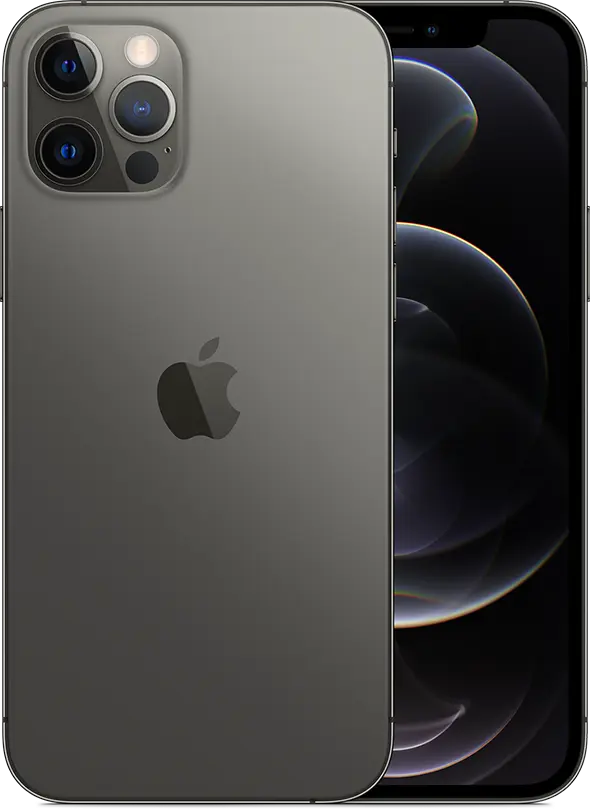

Face ID is the fastest way to unlock your iPhone, approve App Store downloads and pay with Apple Pay. It takes about a minute to set up, and we do it with every customer who buys a new iPhone in store. If you’re setting up at home, this is what to do.
Before you start
- Find a well‑lit spot. Face ID works in the dark once it’s set up, but the first scan is easier in good light.
- Take off sunglasses or anything covering your nose and mouth.
- Hold your iPhone in portrait, about 25 to 50 cm (10 to 20 inches) from your face.
Set up Face ID
- Open Settings and tap Face ID & Passcode. Enter your passcode, or create one if you haven’t yet: it’s your backup way in.
- Tap Set Up Face ID, then Get Started.
- Position your face in the frame and slowly move your head to complete the circle. If you can’t move your head, tap Accessibility Options.
- Tap Continue and complete the circle a second time.
- Tap Done.
Three settings worth turning on
- Face ID with a mask (iPhone 12 or later): useful on matatus, in hospitals and anywhere you’d rather keep a mask on. It works in portrait only.
- Set Up an Alternate Appearance: if you wear glasses that Face ID doesn’t recognise, or your look changes a lot, add a second appearance.
- Use Face ID for: choose what it approves, including iPhone Unlock, Apple Pay, the App Store and password AutoFill.
Bought your iPhone from us? Bring it in and we’ll set up Face ID, Apple Pay and your data transfer with you, free.
Source: Apple Support: Set up Face ID on your iPhone or iPad Pro.