





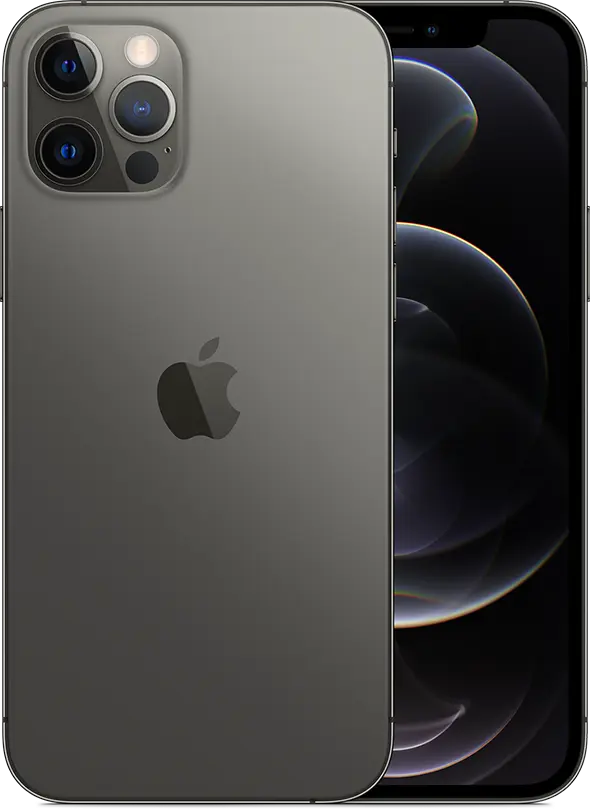

Phone snatching usually comes with a second step: the thief has already seen your passcode. With your passcode alone, they could change your Apple Account password, turn off Find My and lock you out. Stolen Device Protection closes that gap.
What it does
When your iPhone is away from familiar places like home or work, it adds two layers of protection:
- Face ID or Touch ID, with no passcode fallback, for things like using saved passwords and passkeys, using cards saved in Safari, turning off Lost Mode, erasing your iPhone and setting up a new device with it.
- A one‑hour security delay before critical changes: changing your Apple Account password or signing out, changing your passcode, adding or removing Face ID, resetting all settings or turning Stolen Device Protection off. After the hour, your face or fingerprint is needed again.
Apple Pay still accepts your passcode, so paying in a shop works as normal.
What you need
- iOS 17.3 or later
- Two‑factor authentication on your Apple Account
- A passcode, and Face ID or Touch ID
- Find My and Significant Locations turned on (Settings > Privacy & Security > Location Services > System Services)
How to turn it on
- Open Settings and tap Face ID & Passcode (or Touch ID & Passcode).
- Enter your passcode.
- Tap Stolen Device Protection and turn it on.
Our advice
Turn it on, use a passcode longer than six digits if you can, and cover the screen when you type it in public. If your iPhone is ever lost or stolen, mark it as lost in Find My at icloud.com/find straight away.
Source: Apple Support: About Stolen Device Protection for iPhone.